Protect media
You protect media items and folders from the Media section, with the same options as public access for content.
Protect a media item or folder
- Go to the Media section.
-
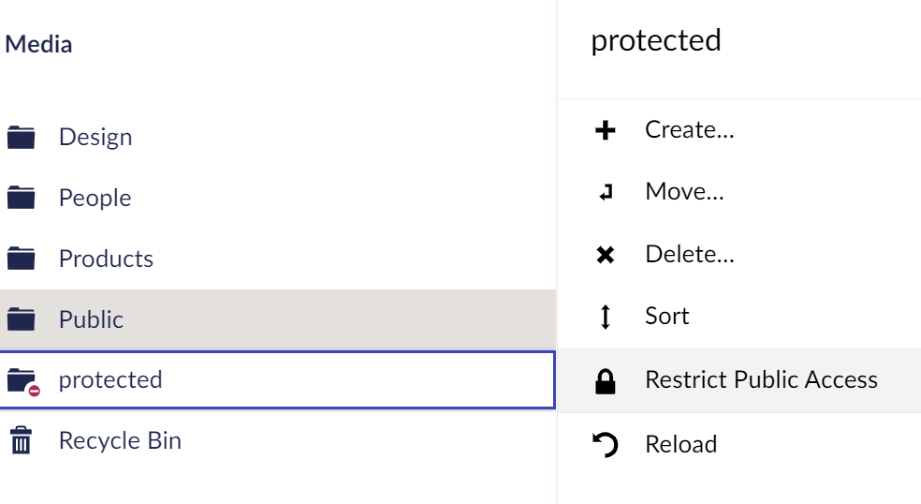
Open the actions menu of the media item or folder you want to protect and select Public Access.
-
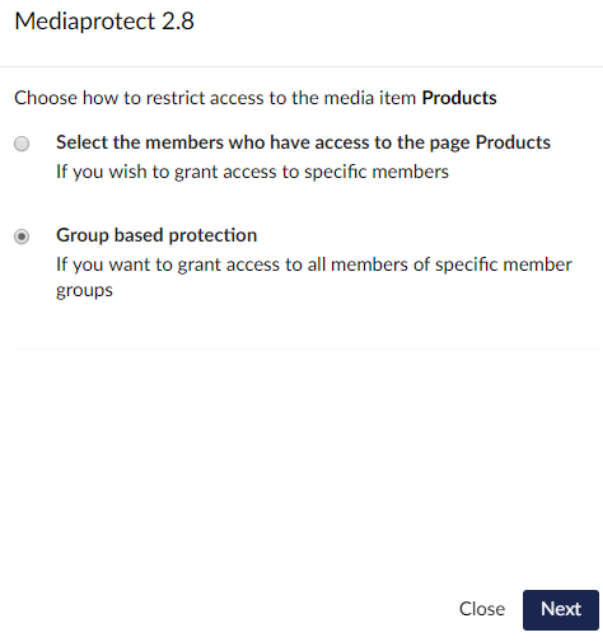
Choose how to restrict access, then click Next:
- Specific members protection — only the members you select have access.
- Group based protection — all members of the member groups you select have access.
-
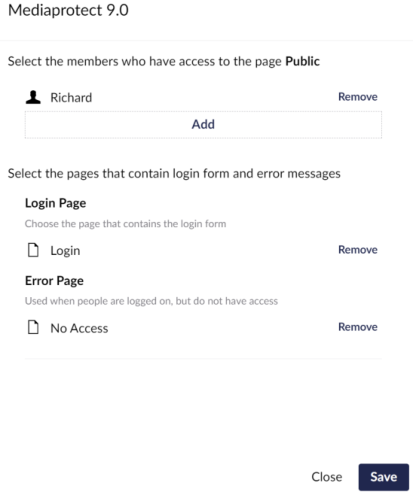
Select the members or member groups that have access.
- Select the Login page. Visitors who aren't logged in are redirected to this page.
- Select the Error page. Members who are logged in but have no access are redirected to this page.
- Click Save.
When you protect a folder, everything inside it is protected too.
Note
You need access to the Members section to see the Public Access action.
Tip
Set a default login and error page so you don't have to pick them every time.
Group based protection
With member groups, you select one or more groups. Every member of those groups has access.
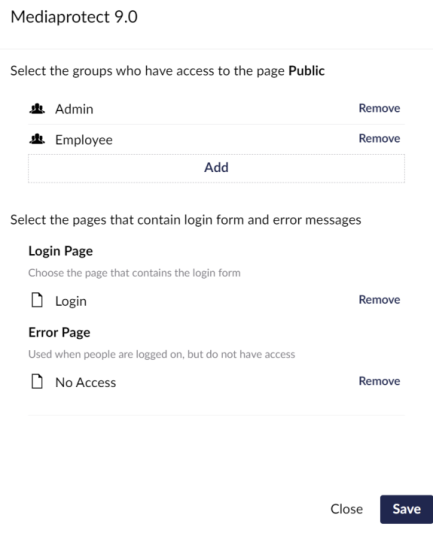
To hide groups from this list, use ExcludeRoles.
Check the protection
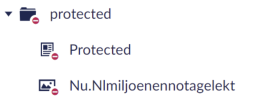
Protected media items have a no-entry sign in the Media tree.
To test it, open the URL of a protected file in a browser:
- When you're not logged in as a member, you're redirected to the login page.
- When you're logged in as a member with access, the file opens.
- When you're logged in as a member without access, you're redirected to the error page.
Note
By default, users who are logged in to the Umbraco backoffice can open protected files. Turn this off with
AllowAccessForUmbracoUsers to test as a visitor in the same
browser.
Remove protection
Open Public Access on the media item again and click Remove protection.