Export members
Export members from the Members section, and save the export to run it again later.
Export members
- Go to the Members section.
- Under Tools, open Export members.
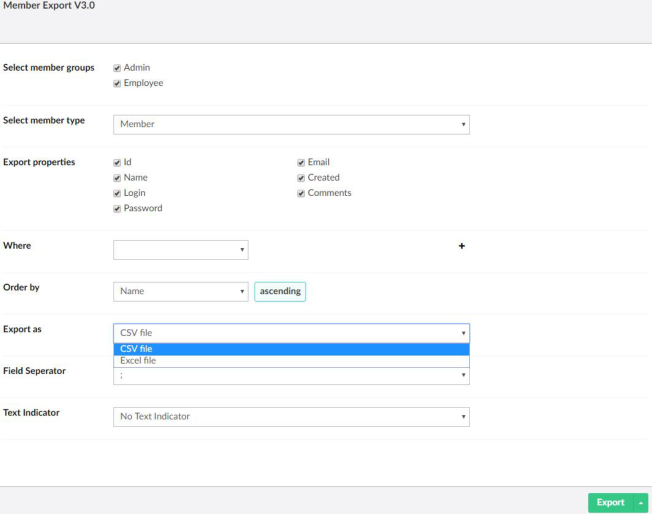
- Fill in the export options:
- Select member groups — export only members of these member groups.
- Select member type — the member type to export.
- Export properties — the fields to include in the file.
- Where and Order by — optional filters and sorting. See Filter and sort.
- Export as — CSV file or Excel file.
- For CSV: the Field Seperator and the Text Indicator.
- Click Export. Your browser downloads the file.
Tip
Opening the CSV file in Excel? Use ; as field separator and " as text indicator.
Filter and sort
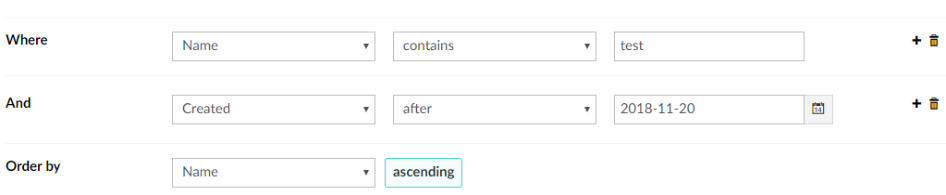
Use Where to export only the members that match your criteria.
- Pick a field, a condition and a value, for example Name contains
test. - Click + to add another condition. All conditions must match.
- Click the trash can to remove a condition.
Use Order by to sort the members in the file. Click the sort direction to switch between ascending and descending.
Save an export
Click Save As and enter a name to save the export options as an export definition. Saved exports appear below Export members in the tree.
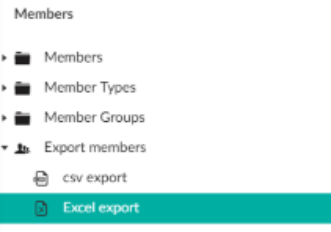
A saved export only stores the options. MemberExport creates the file again, with the current members, every time you run it.
Note
Saving exports needs a PRO license.