Schedule imports
You can run a saved import automatically at a set day and time.
Create a schedule
- In the Import definitions tree, open the actions menu of a saved content or member import.
-
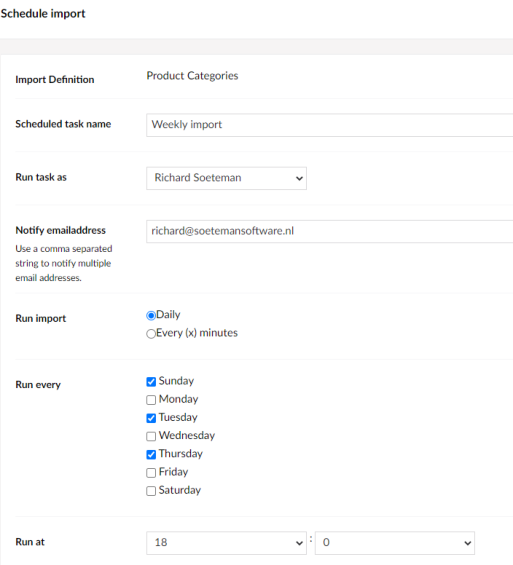
Select Schedule.
-
Choose how often the import runs:
- every week, on selected days and at a set time
- every day, at a set time
- every hour
- Optionally, enter an email address to get a notification when the import finishes.
- Choose the user that is set as the creator of the imported items.
- Click Save.
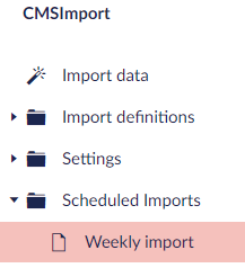
The import now runs at the selected times. When an email address is set, you get an email after each run. You can change this email; see Scheduled task mail.
Scheduled task log
To see when a scheduled import ran, open the actions menu of the schedule and view its log.
The time it ran can differ a little from the scheduled time, for example when the site was down at the scheduled time. When the site comes back up, the scheduler runs any task it missed.