Backoffice settings
The Settings folder in the SEO Checker section holds the ignore lists, user group permissions and email settings. This page also covers personal notifications and clearing the cache.
Ignore lists
These lists show the issues that are ignored during validation:
- Ignored validation issues
- Ignored inbound link errors
- Ignored configuration issues
Select items and delete them to remove them from the list. They are reported again at the next validation.
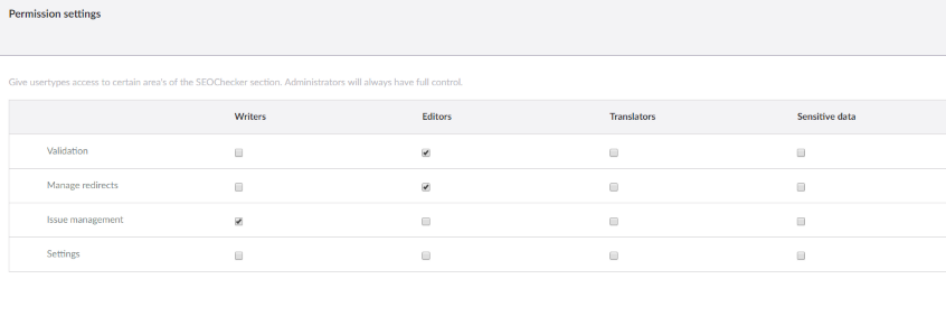
User group permissions
Set what each user group can do in SEOChecker. Administrators always have access to everything.
Email settings
Scheduled task emails
Sent when a scheduled validation has finished. You can set the from address, from name, subject and the Razor template for the email body.
The default template is umbraco/Data/seochecker/mailtemplates/scheduledtask-mail.cshtml. Change it, or add your
own template to that folder and select it. Your template must use the model
SEOChecker.Common.Models.Mail.ScheduledTaskNotificationMailModel.
User notification emails
Sent for my notifications. You can set the same options. The default template is
umbraco/Data/seochecker/mailtemplates/notification-mail.cshtml, with the model
SEOChecker.Common.Models.Mail.NotificationModel.
Note
Emails are sent with the SMTP settings of your Umbraco site (Umbraco:CMS:Global:Smtp). See
Global settings in the
Umbraco documentation.
My notifications
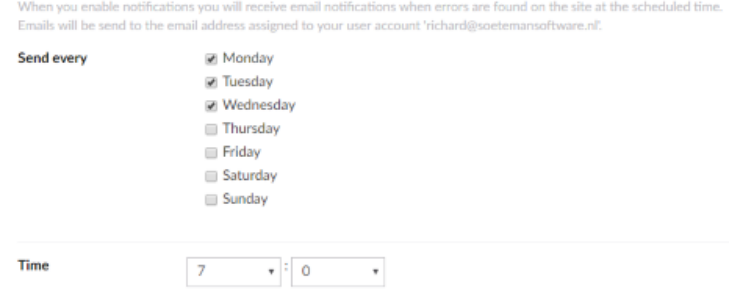
Every user with access to the SEO Checker section can get an email about the issues on the site. Choose the days and time you want to receive it.
The email contains:
- the number of validation issues
- the number of configuration issues
- the number of inbound link errors
- the number of items in the validation queue
Clear the cache
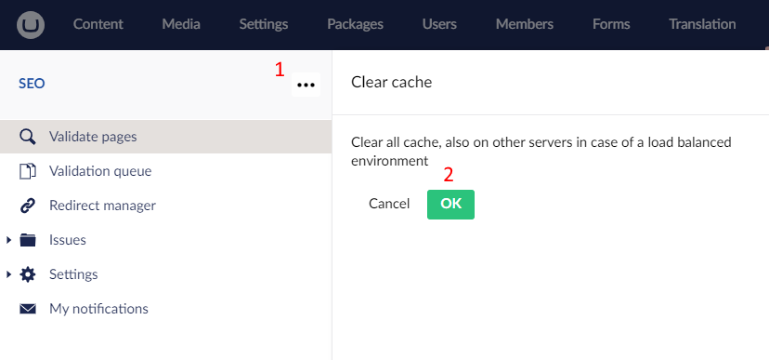
Saving any SEOChecker setting clears the cache. To clear it without changing settings:
- Open the actions menu of the SEO Checker root node and select Clear cache.
- Click OK.
In a load-balanced setup, the cache is cleared on all servers.